Notebooks
Notebooks are the core building block of Neatbase. Each notebook is its own structured collection with a custom set of fields. This page covers creating, customizing, and organizing your notebooks, along with groups for keeping things tidy.
What is a Notebook
A notebook is a collection of notes that all share the same structure. You define the structure by adding fields (like Name, Email, Due Date, or Rating), and every note in that notebook will have those fields.
Each field has a specific type — text, number, date, toggle, and many more — so your data stays consistent. In Notes view, fields appear as individual cards you can edit one at a time. In Table view, they become columns in a grid where you can sort, filter, and compare across all your notes.
You can have multiple notebooks for different purposes. A "Contacts" notebook, a "Project Tracker" notebook, a "Recipe Collection" notebook, and so on. Each one has its own independent structure.
Creating a Notebook
- Click the New Notebook button at the top of the sidebar.
- Choose New Notebook.
- A template picker appears with 20 pre-built templates plus a Blank option.
- Pick a template (like Contacts, Expense Tracker, or Project Tasks) to create a notebook instantly with a pre-set name, icon, color, and fields — ready to use.
- Or choose Blank to start from scratch. You'll enter a name, pick an icon from nearly 50 options, and choose a color (red, orange, yellow, green, teal, purple, pink, gray, or the default accent), then click Create.
On Mac, you can also press Cmd+Shift+N to create a new notebook.
If you chose a template, your notebook already has fields configured and you can start adding notes right away. If you chose Blank, the next step is to add fields to define its structure.
Notebook Settings
Each notebook has a Settings tab where you can configure how notes are displayed.
To open it, click the ⋯ (More) button in the toolbar while viewing a notebook and choose Notebook Settings. On Mac and iPad, Notebook → Notebook Settings… does the same thing.
On a notebook someone else shared with you, Settings is unavailable — only the owner can change a shared notebook's name, icon, and title behavior.
Note Title Mode
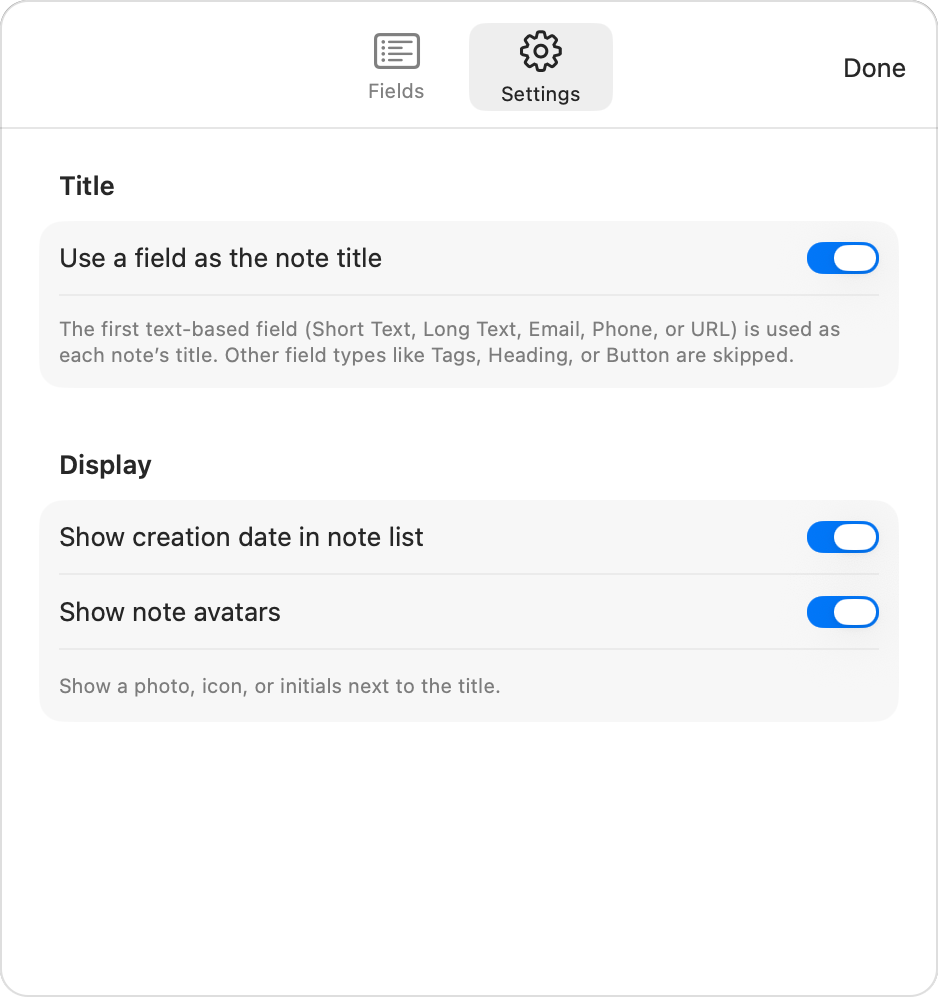
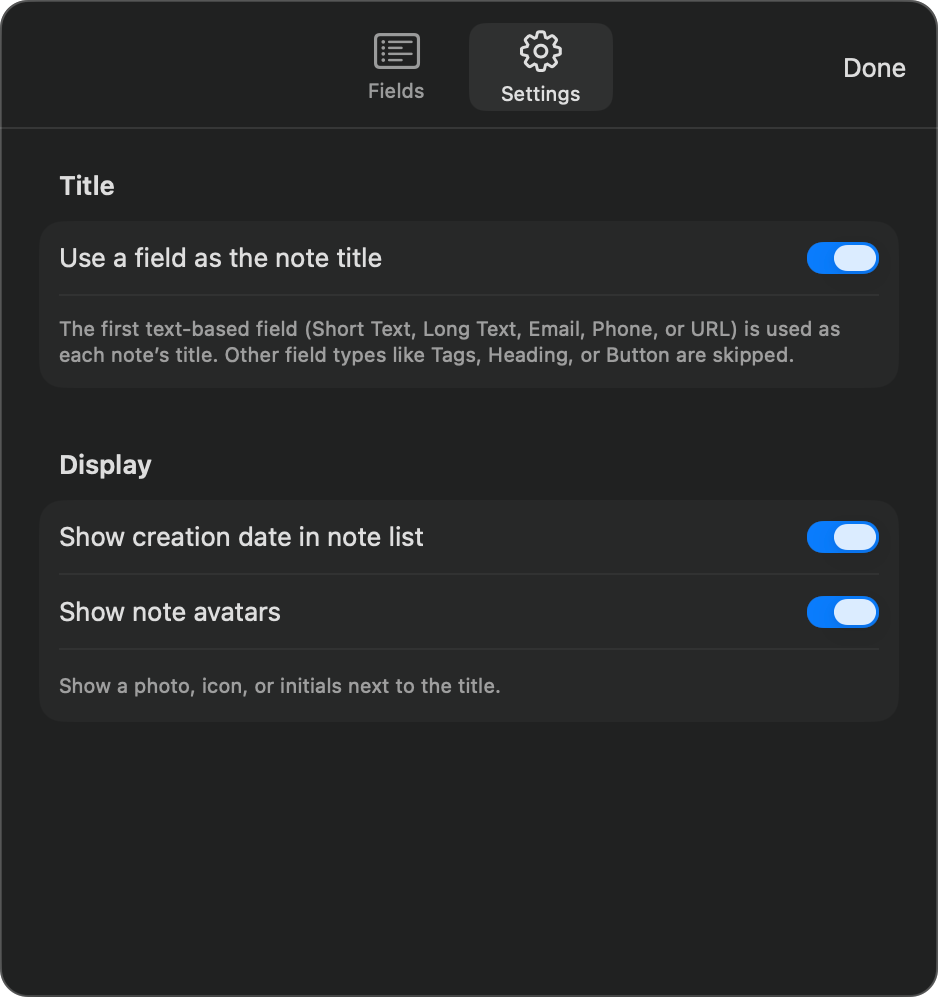
By default, the first text-based field in your notebook is used as the note's display title. Only these field types are eligible as titles:
- Short Text
- Long Text
- Phone
- URL
Other types — Tags, Select, Toggle, Rating, Number, Currency, Date, Image, Color, Formula, Reference, Checklist, Comments, Heading, Description, Divider, Button, and so on — are skipped when picking the title. Reordering a non-text field to the top of your notebook won't break the title; the title will simply use the next text-based field below it. If no text-based field exists at all, notes show "Untitled".
In the Fields list, a filled star icon marks the field currently being used as the title. To change which field is the title, drag a different text-based field above it.
You can turn this off by unchecking Use a field as the note title. When disabled, each note gets its own separate title field that you can edit independently.
Creation Date
The Settings tab also has Show creation date in note list. Turn it off if you'd rather the note list showed only your own fields — useful when the date isn't meaningful for what you're tracking.
Note Avatars
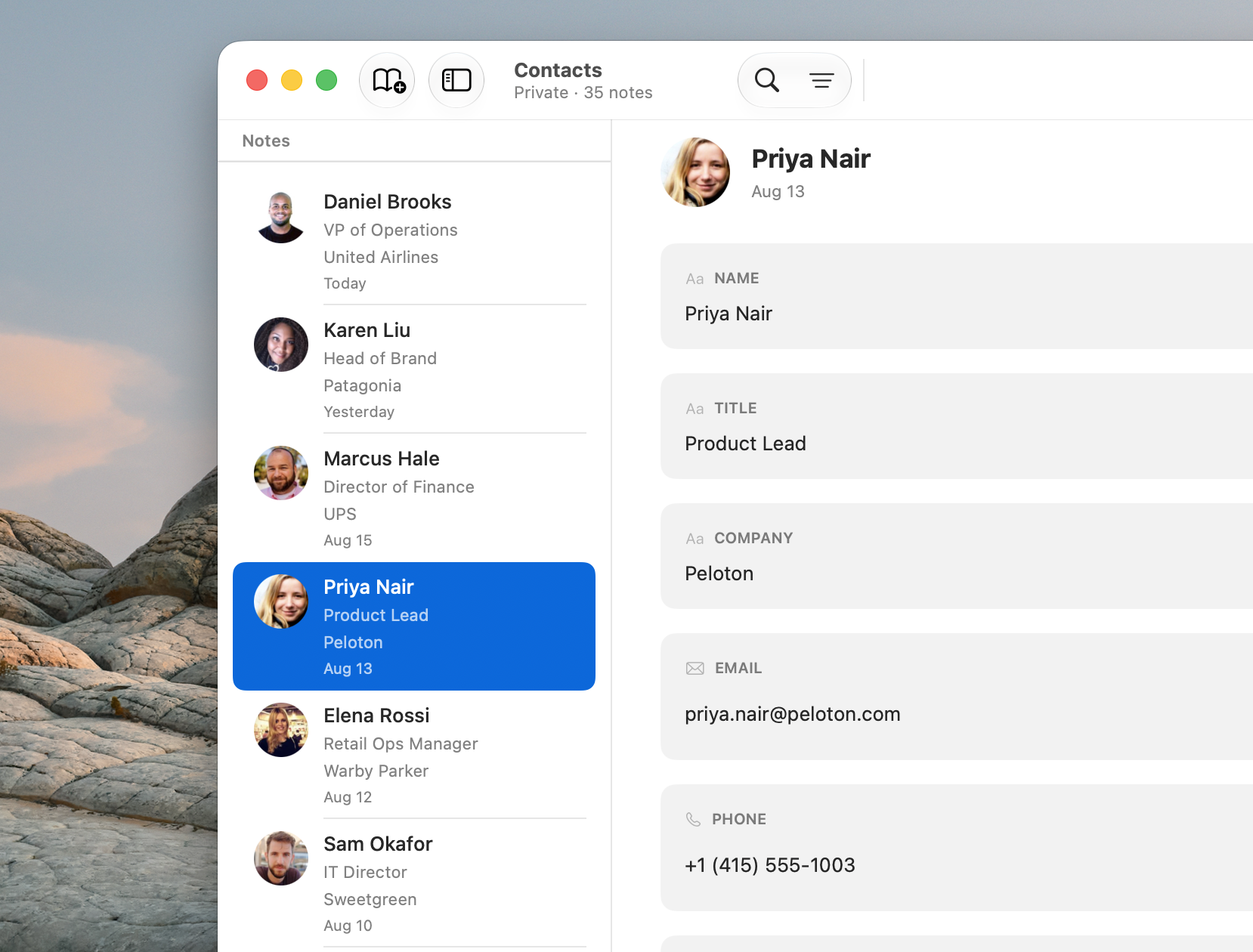
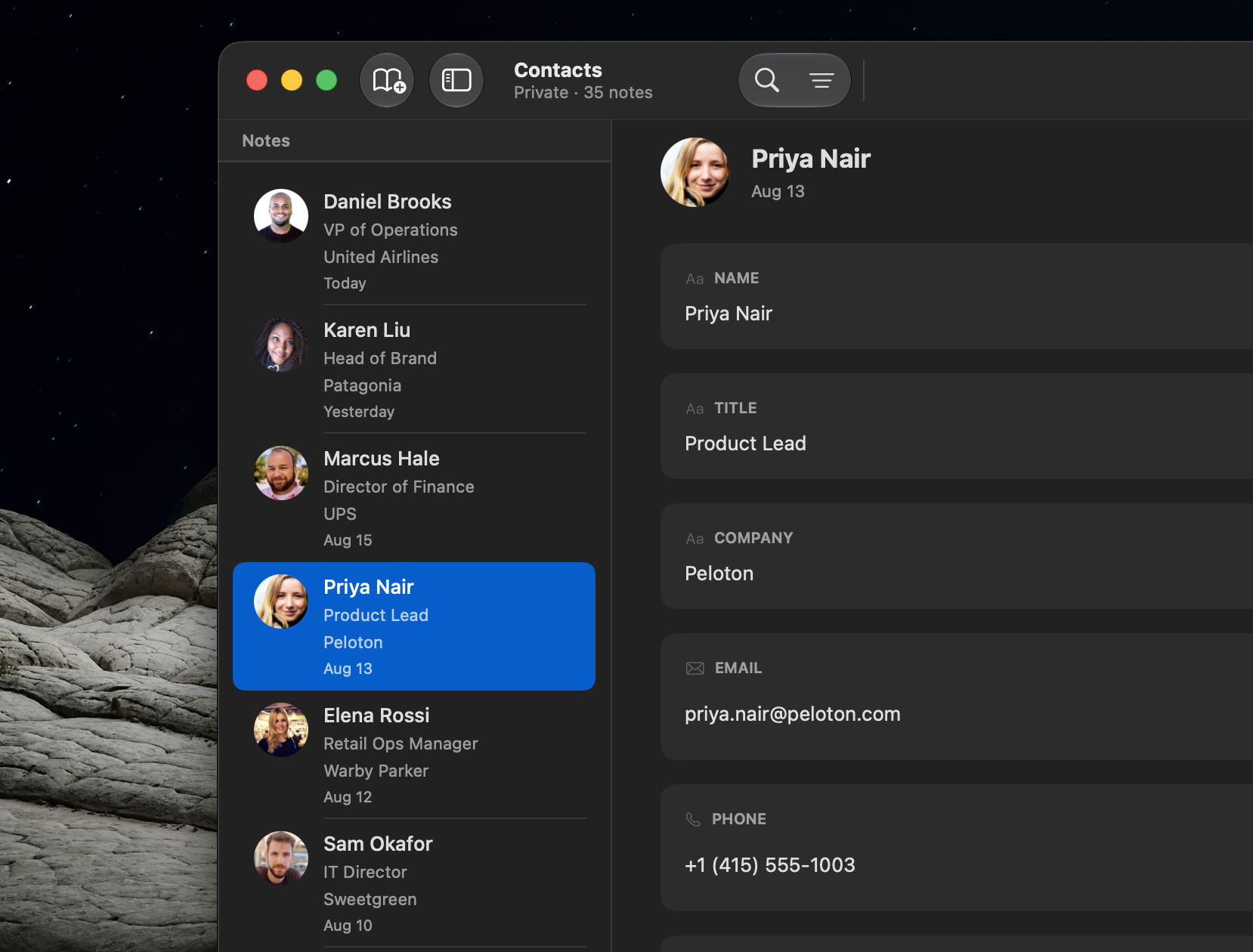
Show note avatars puts a circular image beside each note's title — in the note list, at the top of the note detail, and in the table's title column. It's off by default, and it's most useful for notebooks of people or companies, where a face or a logo makes a long list far quicker to scan than a column of names.
You don't have to supply an image for it to be useful. Each note falls back through the first option that applies:
- A photo you uploaded. Click the circle at the top of a note to add one from your photo library. Right-click it (or long-press on iPhone) for Choose File and Remove Photo.
- The site icon for the note's email address. A note with
jane@shopify.comshows Shopify's logo — no setup, and often more recognizable than a photo in a business notebook. - The site icon for the note's first link, if the notebook has no email field.
- The note's initials, on a color derived from the note itself so it stays the same every time you open the app.
Photos are cropped to a square from the center and stored small, so a notebook full of avatars stays light to sync. Turning the setting off hides avatars but never deletes the photos — turn it back on and they return.
The setting is unavailable when your note title comes from a URL field, since the title already shows that link's site icon and an avatar would just repeat it.
Avatars can also be set from the REST API.
Customizing Appearance
You can change a notebook's name, icon, and color at any time. Right-click (or long-press on iPhone) the notebook in the sidebar and choose Edit Notebook. A sheet opens where you can:
- Rename the notebook
- Change the icon — pick from nearly 50 options
- Change the color — choose from red, orange, yellow, green, teal, purple, pink, gray, or the default accent
Choose Done to save your changes.
Groups
Groups are folders for organizing your notebooks in the sidebar. If you have many notebooks, groups help you keep related ones together.
Creating a Group
- Long-press (or right-click) the New Notebook button at the top of the sidebar.
- Choose New Group from the menu.
- An edit sheet opens where you can name the group and pick a color.
On Mac, you can also press Cmd+Option+N.
Using Groups
- Click the chevron next to a group name to expand or collapse it.
- To move a notebook into a group, right-click it and use Move to.
- Groups can be nested one level deep: you can put a group inside another group, but not deeper than that.
To rename a group or change its color, right-click (or long-press) the group and choose Edit Group.
Sorting and Moving
Sort order
Notebooks and groups in the sidebar are sorted automatically, so you never have to arrange them by hand. Open Settings and, under Sidebar → Sort notebooks by, choose:
- Name — alphabetical (the default).
- Recently updated — most recently changed notebooks first. A group sorts by its most recently updated notebook, so the groups you're actively working in rise to the top.
New notebooks slot into place automatically. (Pinned notebooks are the exception — see Pinning Notebooks below.)
Move to a Group
Right-click a notebook and choose Move to, then select the group you want to move it into. You can also move it back to the root level, or into a different group. Groups themselves are organized the same way — right-click a group and choose Move to.
Pinning Notebooks
Pin frequently used notebooks to the top of the sidebar for quick access.
Right-click a notebook and choose Pin. Pinned notebooks appear in a separate Pinned section at the top of the sidebar, above your groups and other notebooks. They stay at the top regardless of which group they belong to.
To unpin, right-click the notebook and choose Unpin. The notebook returns to its original position in the sidebar.
You can have multiple pinned notebooks. Drag them within the Pinned section to reorder.
Archiving
Archive a notebook or group to hide it from the sidebar without losing anything. The data stays intact, sync keeps running, the notebook still shows up in search and notifications — it's just out of view until you want to see it again.
Archiving a Notebook
Right-click a notebook and choose Archive, then confirm. The notebook disappears from the sidebar. To bring it back:
- On iPhone (and iPad in compact view), open the ⋯ (More) menu in the sidebar and choose Archived.
- On iPad (when the sidebar is shown side-by-side), tap the Archive icon in the bar at the bottom of the sidebar.
- On Mac, choose View → Archived Notebooks from the menu bar.
The sheet lists everything you've archived. Choose Unarchive next to any item to restore it to the sidebar.
Archiving a Group
Right-click a group and choose Archive. The entire group disappears from the sidebar — along with every notebook and subgroup inside it. Unarchiving the group brings the whole subtree back at once.
What Archiving Doesn't Change
Archive is purely about cleaning up your sidebar. It does not:
- Delete any notes or data.
- Affect sync — changes from other users (on shared notebooks) still arrive.
- Pause web form submissions or API access.
- Remove the notebook from Spotlight, the widget, or the unread badge count.
- Count against the free 3-notebook limit any differently — archived notebooks still count.
Archive is Private to You
When you archive a shared notebook, only your own devices hide it. Other people the notebook is shared with see no change on their side.
For your own personal notebooks, archived state syncs across all your Apple devices via iCloud — archive on your Mac, and it's archived on your iPhone too.
Deleting
Deleting a Notebook
Right-click a notebook and choose Delete. A confirmation dialog shows how many notes will be deleted along with it. This action cannot be undone.
Deleting a Group
Right-click a group and choose Delete Group. A confirmation dialog shows the total number of notebooks inside the group (including any in nested subgroups). Deleting a group deletes all notebooks and notes inside it.
Free vs. Pro Limits
On the free plan, you can create up to 3 notebooks with up to 100 notes in each one in addition to the basic set of field types.
With Neatbase Pro, you get unlimited notebooks, unlimited notes, and access to advanced features like Formula fields, Reference fields, Web Forms, Sharing, and the REST API.
See Neatbase Pro for the full comparison.