Sharing
Share a notebook with other people using a link. Everyone who has the link can read and edit the whole notebook, and changes sync automatically between all of them — so share it only with people you trust. The data itself is end-to-end encrypted: Neatbase's servers store it but can't read it.
This page covers how sharing works, how to manage participants, and what the security model does and doesn't protect.
Which feature do you want? Use sharing to work on a notebook together with people you trust. Use a web form to collect submissions from people who shouldn't see the notebook itself. Use the REST API to let your own scripts and tools read and write it.
Pro: Creating a share requires a Neatbase Pro subscription. The people you invite don't need Pro — anyone can join a shared notebook and edit it for free. A shared notebook does count toward the free plan's three-notebook limit.
How Sharing Works
When you share a notebook, Neatbase encrypts all of its content on your device, uploads the encrypted data to the server, and generates a share link. Anyone who opens the link joins the shared notebook. Changes sync automatically in both directions.
The server never sees your data in readable form. Everything is encrypted before it leaves your device, and only people with the share link can decrypt it.
One exception: if you also turn on the REST API for a notebook, the encryption key is stored on the server so it can answer API requests. That notebook is no longer end-to-end encrypted. Turning the API off clears the stored key and restores end-to-end encryption.
Sharing a Notebook
- Click the ⋯ (More) button in the toolbar and choose Share.
- Click Share Notebook.
- If this is your first time sharing, you'll be asked to enter your name. This is how other participants will identify you.
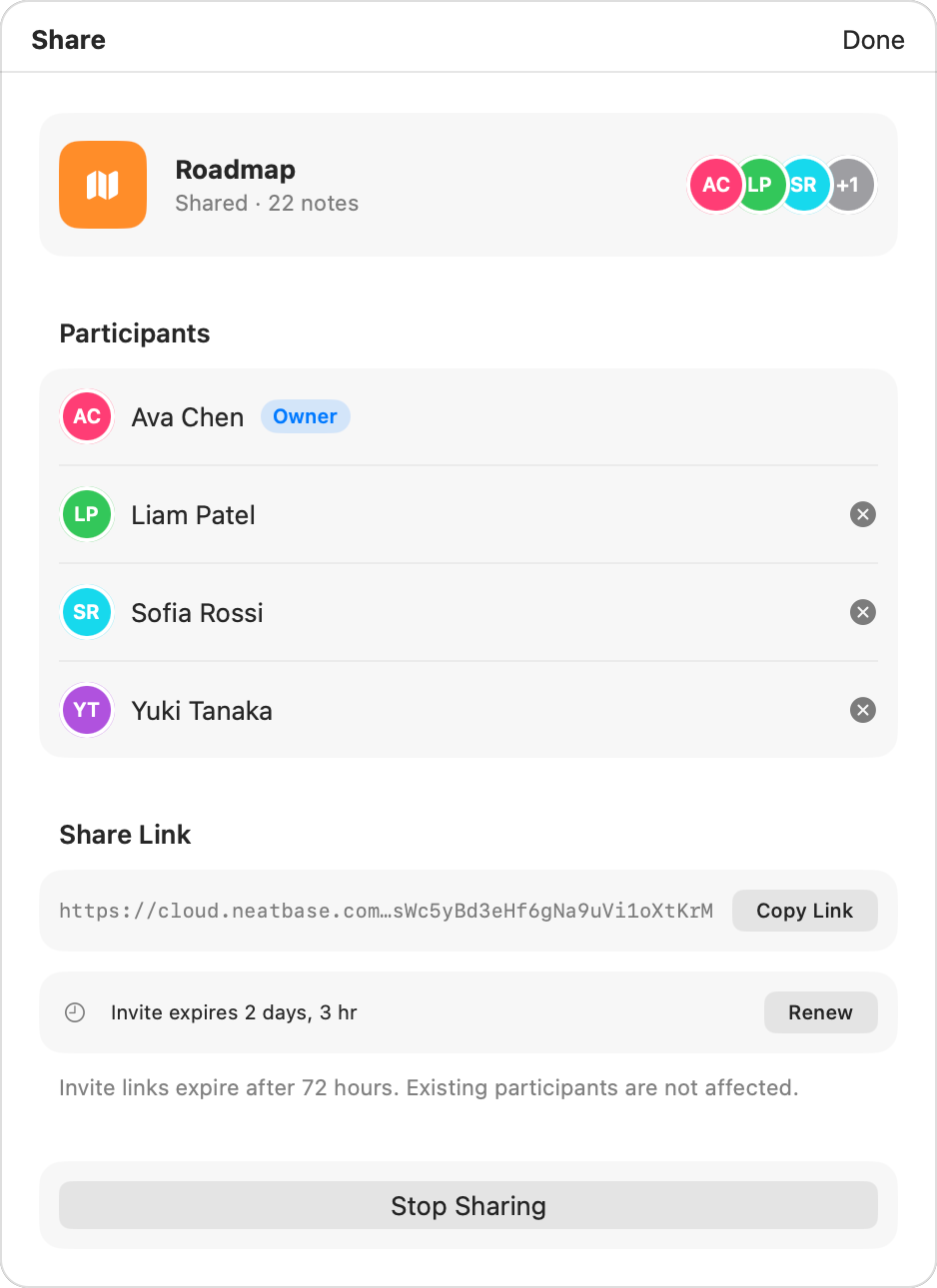
- The share link is generated. Click Copy Link to copy it to your clipboard.
Send the link to anyone you want to share with. Paste it in a message, email, or wherever works best.
The Share Link
The share link looks like this: cloud.neatbase.app/s/{id}/{key}
The last part of the URL is the encryption key, which the Neatbase app uses to decrypt the notebook. The server uses it only to show the notebook's name on the landing page, and doesn't keep it. That's what makes the encryption end-to-end: the server holds your data but can't read it. (Enabling the REST API on a notebook changes this — see the note above.)
Treat the link like a password. Anyone with the full link (including the key) can join your notebook and read all its contents. Only share it with people you trust.
Joining a Shared Notebook
When someone receives a share link:
- They open the link in a browser.
- A landing page appears with an Open in Neatbase button.
- Clicking the button opens the Neatbase app and shows a join confirmation.
- After confirming, the encrypted notebook is downloaded and decrypted on their device.
- The notebook appears in their sidebar, ready to use.
If the person doesn't have Neatbase installed, the landing page links to the App Store.
What Participants Can Do
The person who creates the share is the owner. Everyone else is a participant. Here's how permissions work:
Owner Only
- Rename the notebook
- Change the notebook icon and color
- Change notebook settings (like whether the first field is used as the note title)
- Stop sharing
- Remove individual participants
- Enable the REST API or publish a web form
- Import notes from a CSV file
- Export the notebook or a note (CSV or TXT)
All Participants (Including the Owner)
- Create, edit, and delete notes
- Add, rename, reorder, and delete fields
- Choose between notes view and table view (this is a personal preference — it doesn't affect other participants)
How Syncing Works
Once a notebook is shared, all participants sync automatically:
- The app checks for changes automatically while it's open.
- Syncing is bidirectional. Your changes go up, other users' changes come down.
- If two users edit the same field on the same note, the most recent edit wins. Edits to different fields on the same note merge without conflict.
- New notes, deleted notes, and field changes all sync.
In shared notebooks, each note shows who created it and who last edited it, so you can see who made changes.
Reference Fields Between Shared Notebooks
A Reference field keeps working across a share: if the notebook holding the field and the notebook it links to are both shared, every participant who has joined both sees the linked notes' titles and can create links of their own. Participants who haven't joined the target notebook see existing links resolve where possible, but can't pick new ones — the picker reports the notebook as unavailable.
Managing Participants
In the Share panel, the owner sees every participant, with their display name and the date they joined.
Removing a Participant
As the owner, you can remove individual participants by clicking the × next to their name. After confirming, the participant's access is revoked immediately. On their next sync, their copy of the shared notebook will be removed from their device.
Participant Limit
A shared notebook holds up to 10 people, including you. Your own devices don't each take a slot — the Mac, iPhone, and iPad you sign in on together count as one person, and the same is true for everyone else. Once a notebook is full, new links won't let anyone else in until you remove someone.
Invite Expiration
Share links expire after 72 hours. After that, new users can't use the link to join. Existing participants are not affected.
To invite more users after the link expires, choose Renew Invite in the Share panel to generate a fresh 72-hour window.
Security
Neatbase uses strong encryption to protect shared notebook data.
What's Encrypted
- Notebook name
- Field names, types, and configurations
- Note titles
- All field values (text, numbers, dates, toggles, everything)
- Image data
What Stays Unencrypted
- IDs, timestamps, and ordering (structural data the server needs to coordinate sync)
- Notebook icon and color
How It Works
- Algorithm: AES-256-GCM, a widely trusted standard used by banks and governments.
- Key generation: A 256-bit key is generated on your device using Apple's CryptoKit framework.
- Encryption happens on-device: Content is encrypted before upload and decrypted after download. The server only stores opaque encrypted blobs.
- Key distribution: The encryption key is embedded in the share link URL. It travels only through the link you share directly with others.
- Server access: The server can see that a shared notebook exists, how many participants it has, and when it was last synced. It cannot see any of the content.
It's the same idea as an unlisted link to a shared document: anyone who has the link can get in, and there's no separate list of approved accounts. The difference is that a Neatbase link also carries the decryption key, which is what stops the server reading your notebook — and what makes the link the only thing standing between your data and whoever holds it.
Stopping a Share
As the Owner
If you created the share, you can stop it:
- Choose ⋯ (More) → Share.
- Click Stop Sharing.
- Confirm in the dialog.
This immediately revokes access for all participants. The server deletes all shared data. Your local copy of the notebook is not affected.
On each participant's next sync, their copy of the shared notebook will be removed from their device.
As a Participant
If you joined someone else's share, you can leave:
- Choose ⋯ (More) → Share.
- Click Leave Share.
- Confirm in the dialog.
Your device stops syncing with the shared notebook. Your local copy is removed. The share continues for everyone else.