Fields
Fields define the structure of your notebook. Every note in a notebook shares the same set of fields. This page covers how to add, manage, and configure fields, along with a full reference for all 27 field types.
How Fields Work
When you add a field to a notebook, it appears on every note in that notebook, both existing and new. If you have a "Contacts" notebook with 50 notes and you add a "Birthday" date field, all 50 notes will gain that field immediately.
Fields have a type that determines what kind of data they hold and how they look in the app. A Short Text field gives you a single-line text input. A Rating field gives you tappable stars. A Date field gives you a date picker. And so on.
Each notebook can have as many fields as you need, and you can add, remove, and reorder them at any time.
What Each Type Can Do
Most of the time you just pick the type that matches your data. But five capabilities vary by type, and they're easier to compare in one place than to hunt for in each section below:
- Note title — can this field supply the note's title? (Neatbase uses the first field that can.)
- Note list — can its value appear as a subtitle under the title in the note list?
- Web form — does it appear on a published web form?
- CSV import — can you import values into it from a spreadsheet?
- Pro — does it need Neatbase Pro?
| Field type | Note title | Note list | Web form | CSV import | Pro |
|---|---|---|---|---|---|
| Short Text | ● | ● | ● | ● | |
| Long Text | ● | ● | ● | ● | |
| Secret | ●* | ● | |||
| ● | ● | ● | ● | ||
| Phone | ● | ● | ● | ● | |
| URL | ● | ● | ● | ● | |
| Number | ● | ● | ● | ||
| Currency | ● | ● | ● | ||
| Rating | ● | ● | ● | ||
| Formula | ● | ● | |||
| Date | ● | ● | ● | ||
| Toggle | ● | ● | |||
| Tags | ● | ● | ● | ||
| Select | ● | ● | ●† | ||
| Reference | ● | ||||
| Checklist | |||||
| Image | ● | ||||
| Color | ● | ● | |||
| Comments | ● | ||||
| Duration | ● | ● | ● | ||
| Percent | ● | ● | ● | ||
| Barcode | ● | ● | ● | ||
| QR Code | ● | ● | ● | ||
| Button | |||||
| Divider | ● | ||||
| Heading | ● | ||||
| Description | ● |
* Secret fields appear on web forms as ordinary visible text boxes — the masking only exists inside the app. Don't put a Secret field on a public form expecting it to be hidden.
† You can import values into an existing Select field, but you can't create one during an import, because Neatbase can't infer its list of options from a spreadsheet. Create the field first, then import.
Adding a Field
- Click the ⋯ (More) button in the toolbar and choose Edit Fields. On Mac and iPad you can also use Notebook → Edit Fields… in the menu bar.
- Click Add Field.
- Pick a field type from the grid. Types are organized into ten sections: Text, Contact, Numbers, Date, Selection, Rich Content, Measurement, Scanning, Action, and Layout.
- Enter a name for the field.
- If the type requires configuration (like a currency code or tag options), fill in those settings.
- Optionally, turn on Show in note list to display this field's value as a subtitle on note cards in the sidebar. You can also toggle this later from the field list.
- Click Add.
Managing Fields
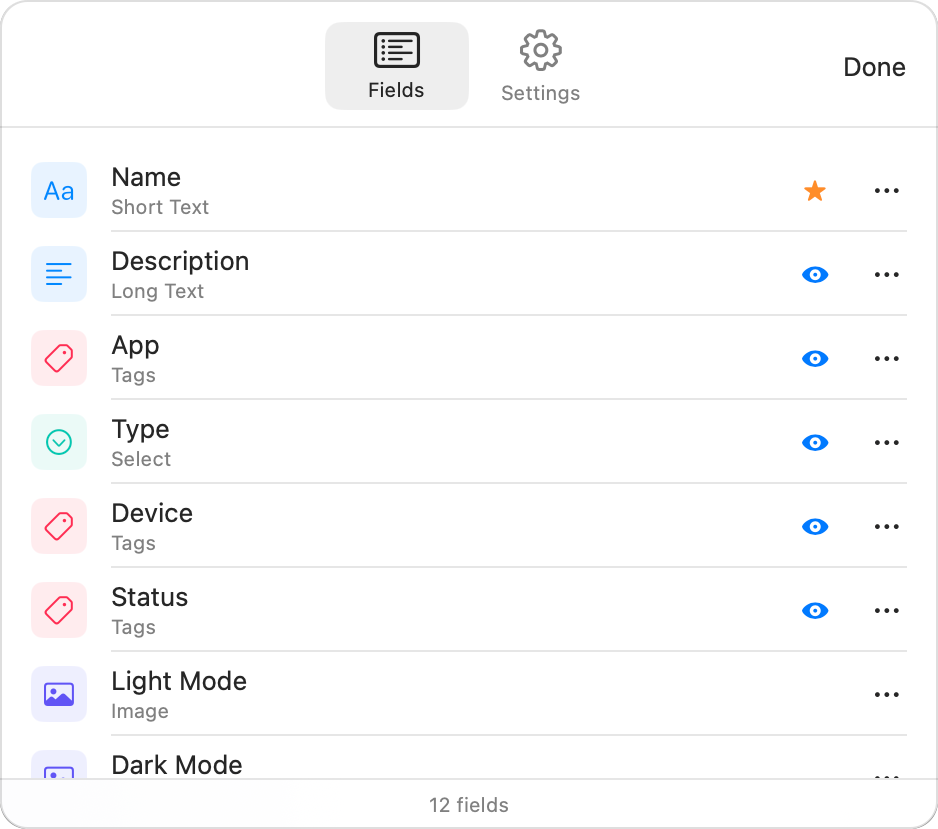
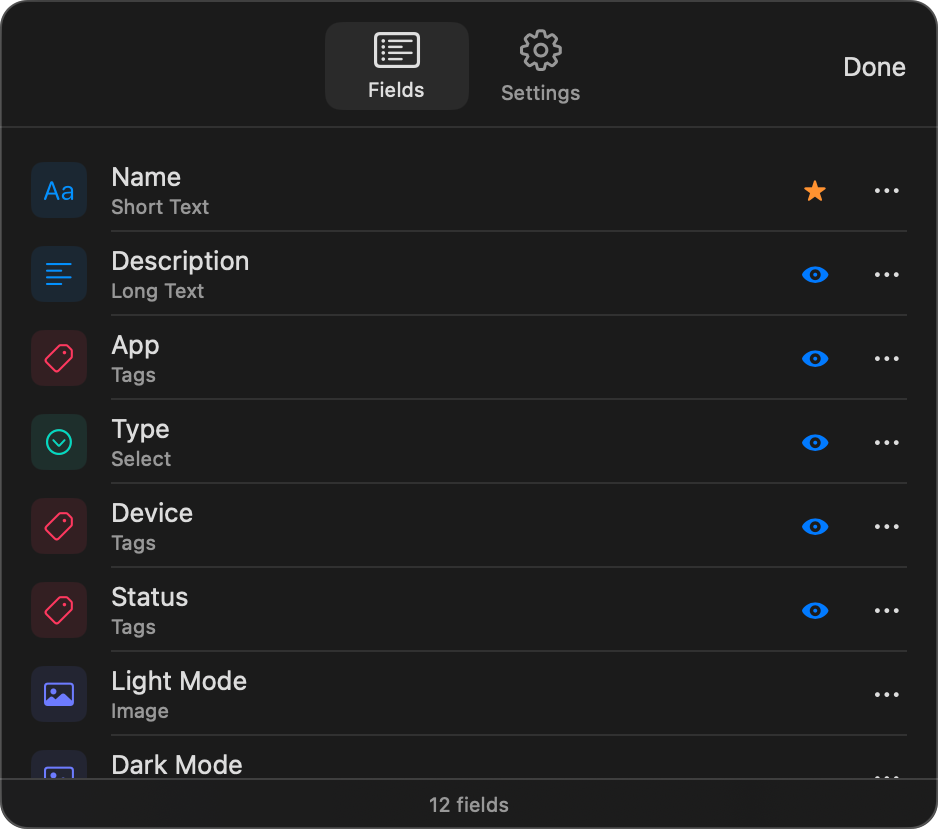
Choose ⋯ (More) → Edit Fields to see all your fields in a list.
Reordering
Drag fields up and down in the list to change their order. The order here determines how fields appear in the note detail view and as columns in the table view.
Renaming
Open a field's ⋯ menu and choose Rename. Type the new name and press Enter.
Deleting
Open the field's ⋯ menu and choose Delete. A confirmation dialog appears. Deleting a field removes it from every note in the notebook, along with all its values. This cannot be undone.
Editing Configuration
For most types you can also open the ⋯ (More) menu and choose Edit Field to change its settings — the currency for a Currency field, the options for Tags or Select, the expression for a Formula, and so on. (Dividers have nothing to configure, so they don't offer it.)
Field Visibility
Each field has an eye icon toggle that controls whether it shows as a subtitle line in the Notes view note list. This is a display preference, not a data change. Hidden fields still appear in the note detail panel and in the table view.
One field carries a star icon instead of the eye. That's the field being used as the note's title — the first field whose type can hold a title (Short Text, Long Text, Email, Phone, or URL). If your first field is something else, like a Date or a Heading, the star appears further down the list. The star only shows while "Use first field as note title" is turned on in the notebook's Settings.
Text
Short Text
A single-line text input. Good for names, titles, short descriptions, or any brief piece of text.


Long Text
A multi-line text area that expands as you type. Use this for longer content like notes, descriptions, or paragraphs.


Secret
A text field that's hidden behind biometric authentication (Face ID or Touch ID). The value displays as dots until you tap to reveal it. Useful for passwords, PINs, or other sensitive information.
In Notes view, click the eye icon to authenticate and reveal the value. In Table view, each secret cell shows an eye icon — tap it to authenticate with Face ID or Touch ID, then click to select and click again to edit, just like other text fields.


On web forms, secret fields render as regular text inputs (the biometric protection only applies within the app). Secret fields are excluded from search results and the REST API for privacy.
Contact
A text field for email addresses. Click the value to open a new email in your default mail app.


Phone
A text field for phone numbers. Click the value to start a call.


URL
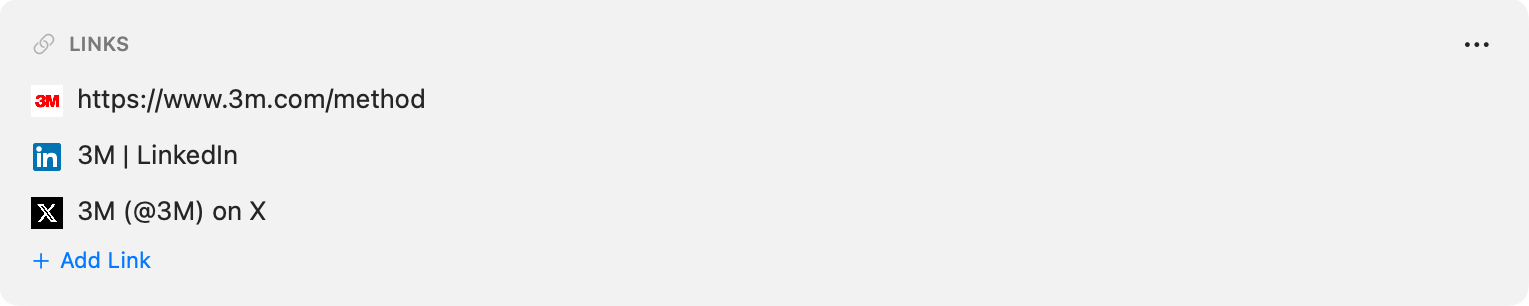
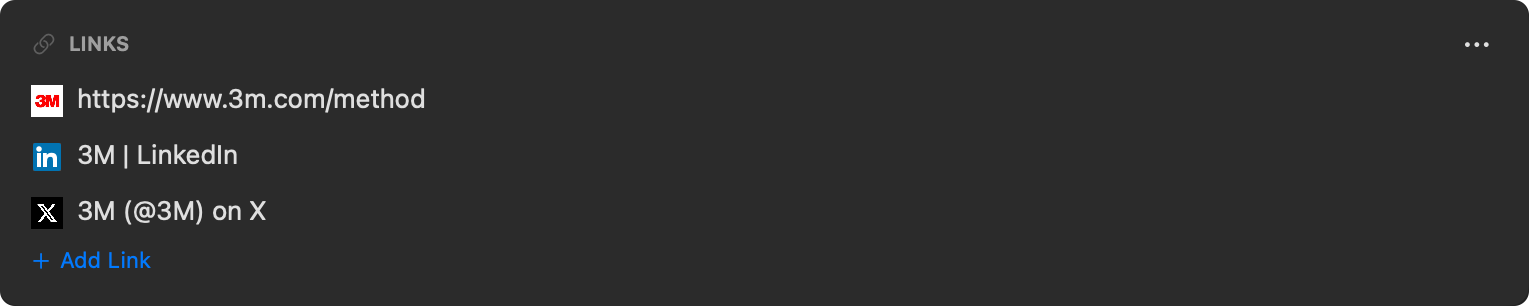
A field for web links. A saved link shows the page's title next to the site's icon — the way a bookmark manager would — instead of the raw URL, so a list of links reads as names rather than near-identical addresses. Click it to open it in your browser.
Rename a link. Right-click it (long-press on iPhone and iPad) and choose Edit Title to give it your own name. Clearing the name brings the page's own title back. If a page can't be reached or has no title, the URL shows instead.
Edit the address. On Mac, hold Shift and click a link to edit it instead of opening it — handy for fixing a typo in a link that already works. On every platform you can also use Edit URL in the link's menu.
Multiple links. Turn on Allow multiple links when you create or edit the field, and it holds as many links as you need instead of one. Each link gets its own row with the site's icon and the page's title, and an Add Link button sits underneath. Click a link to open it — the link is the button, so there's nothing extra to aim for. Right-click a row (long-press on iPhone and iPad) for Open Link, Edit URL, Edit Title, and Delete; deleting asks for confirmation first. On Mac, resting the pointer on a link for a moment reveals a small ⋯ button with the same menu.
Reorder the rows to put your most-used link first: on Mac, press and hold a row, then drag it. On iPhone and iPad, choose Reorder from the row's menu — drag handles appear on the left of every row, and Done replaces the Add Link button while you're rearranging.
In Table view, a multi-link cell shows the site icons — one per link. Click the cell to open the full editor in a popover, or select the cell and press Enter.
Every link is indexed separately by Quick Find's URLs mode, so you can jump straight to any one of them.
Numbers
Number
A numeric input. Whole numbers display without decimals.


Currency
A numeric input with a currency symbol. When you create a Currency field, you pick the currency code (USD, EUR, GBP, JPY, and many others). The value displays with the appropriate currency formatting.


Rating
A 1 to 5 star rating. Click a star to set the rating. To clear a rating, select the cell in Table view and press Delete, or use Clear Value from its right-click menu. Ratings display as filled and unfilled stars throughout the app.


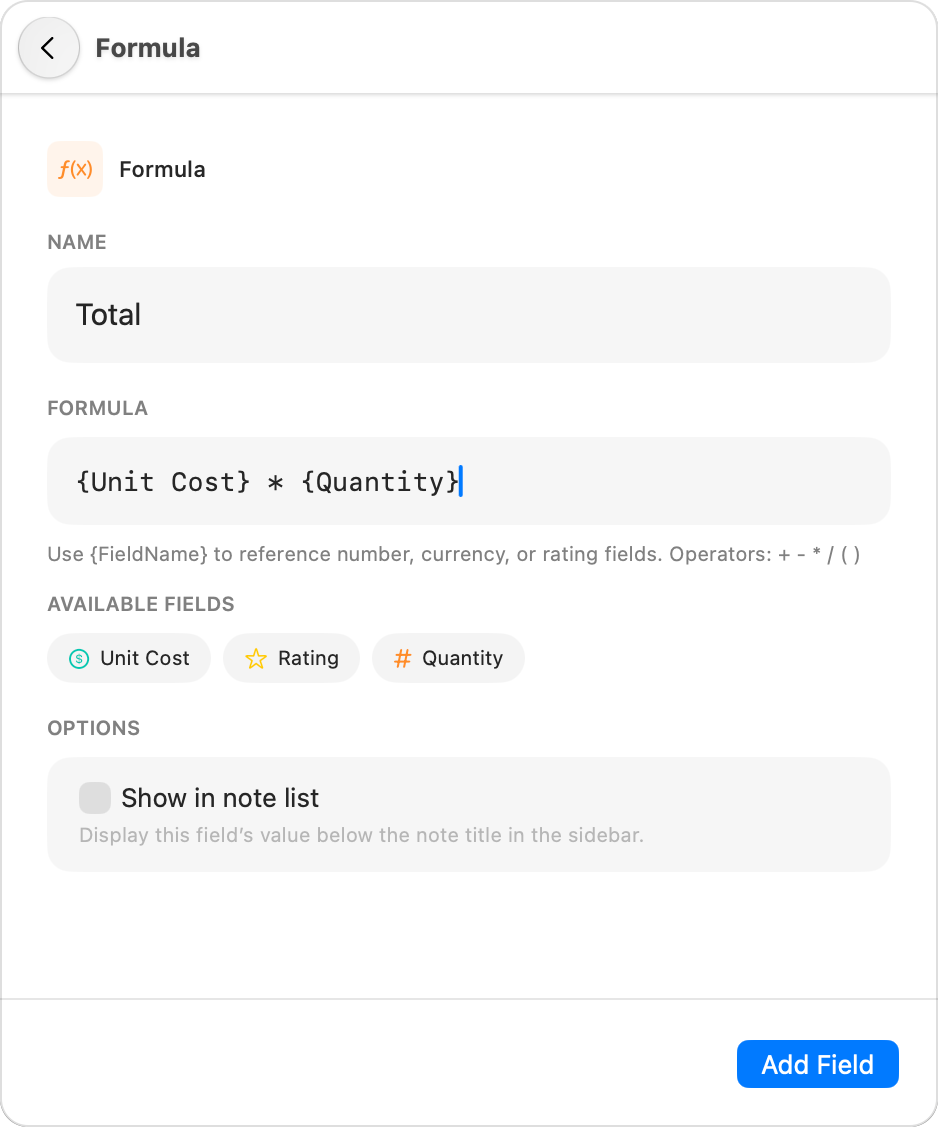
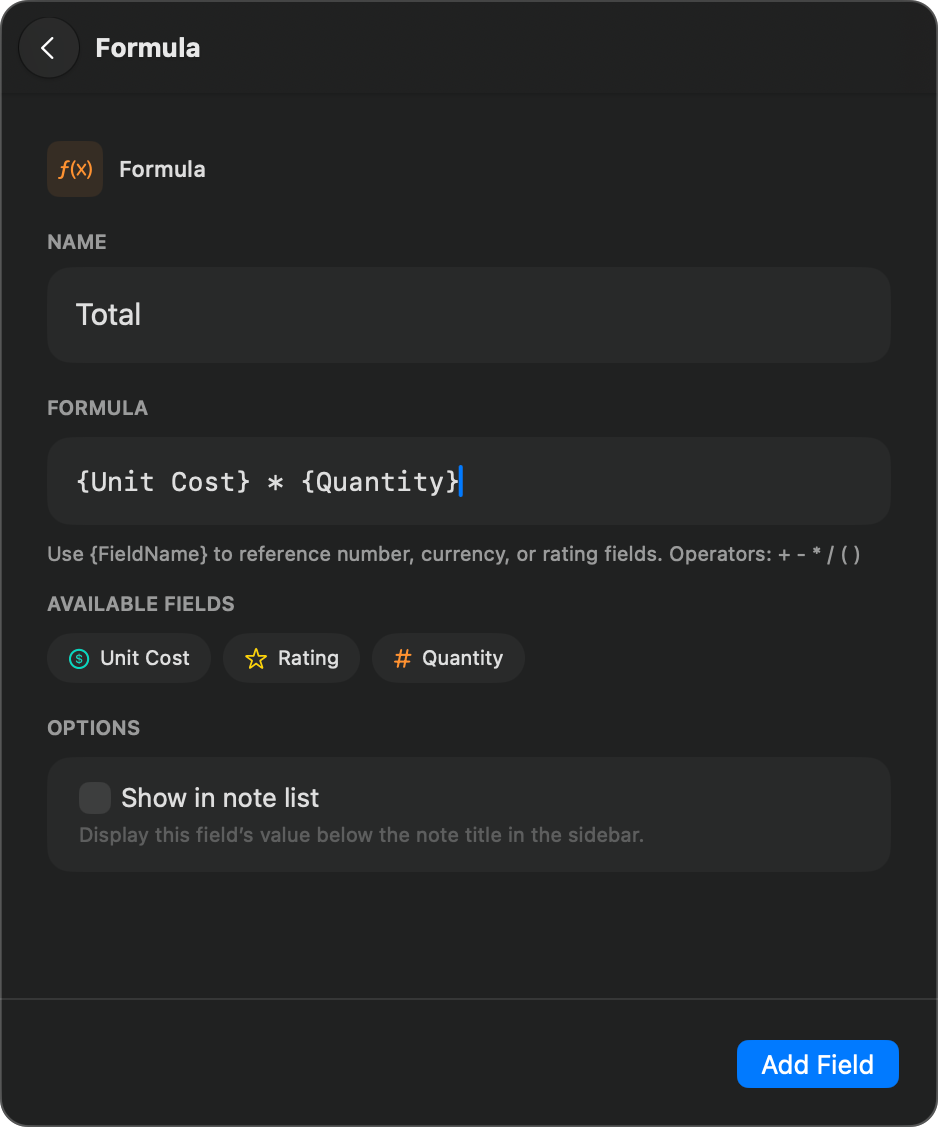
Formula
Pro: Formula fields require a Neatbase Pro subscription.
Formula fields compute a value automatically from other numeric fields in the same notebook. They're read-only: you can't edit them directly.
Write your formula using field names in curly braces and standard arithmetic operators:
{Price} * {Quantity}— multiplication{Subtotal} + {Tax}— addition{Total} / {Count}— division{Revenue} - {Expenses}— subtraction
Formulas can reference Number, Currency, Rating, Duration, and Percent fields. They skip other Formula fields to avoid circular references.
Error states:
- #REF? — The formula references a field name that doesn't exist.
- #ERR! — The expression is invalid or can't be evaluated.
Date
A date field that displays as a tappable pill. Click the pill to open a calendar date picker. Dates display in an abbreviated format (e.g., "Apr 5, 2026").


Options
Date fields have four optional settings you can enable from the field editor:
- Notify on date — Sends a local notification on the date as a reminder. By default the reminder fires at 9:00 AM; if "Include time" is also enabled, it fires at the stored time. You can also turn off all date reminders globally in the app's notification settings.
- Add to Calendar button — Shows a calendar button next to the date pill. Click it to add the date as a calendar event in your default calendar. If "Include time" is enabled, it creates a timed event with a 1-hour duration starting at the stored time; otherwise it creates an all-day event. The calendar event includes a link back to the note in Neatbase, so tapping the event URL opens the note directly in the app.
- Highlight on date — Shows the date in red on the day. Past and future dates render normally. Off by default — leave it off if you don't want color emphasis.
- Include time — Captures and displays a time alongside the date. The date picker switches to a combined date + time picker, and the date displays as "Apr 5, 2026, 3:00 PM" instead of just "Apr 5, 2026". Affects how notifications fire, how calendar events are created, and how the REST API formats the value (ISO 8601 datetime instead of plain date).
Selection
Toggle
A yes/no switch. Useful for marking things as done, active, paid, or any other binary state.


Tags
A multi-select field with predefined options. When you create a Tags field, you enter the available options as a comma-separated list (e.g., "Design, Marketing, Engineering"). Notes can have any combination of the available tags.
You can optionally enable single-select mode in the field's configuration, which limits each note to one tag at a time instead of allowing multiple selections.
Tag colors. Give a tag a color by adding :color after its name in the options list — for example Urgent:red, In Progress:blue, Done:green. The available colors are red, orange, yellow, green, teal, cyan, blue, purple, pink, and gray; tags without a color use the default blue. On Mac, there's also a quick shortcut: Shift-click a selected tag to cycle it through the colors and stop on the one you want — no need to open the field settings. The color you pick applies to that tag everywhere it appears.


Select
A single-choice dropdown. When you create a Select field, you enter the available options as a comma-separated list (e.g., "Active, Inactive, Pending"). Each note picks at most one value.
Clicking the field opens a dropdown with all the configured options. The currently selected one is marked with a checkmark, and a Clear selection button at the top lets you remove the value. The popover is taller than a standard system dropdown, so longer option lists are easier to scan.
Use Select when you want a constrained pick-one experience (like a Status, Stage, or Category field). If you need multiple choices on the same note, use Tags instead. If you want some flexibility (typing new options on the fly), Tags is also the better fit — Select strictly validates against the configured options, both in the app and in the API.


Reference
Pro: Reference fields require a Neatbase Pro subscription.
A Reference field links to notes in your other notebooks. When you create the field, you pick which notebook — or notebooks — it can link to. You can then pick a note from any of them as the value.
For example, a "Projects" notebook could have a Reference field that links to notes in a "Clients" notebook.
Multiple notebooks. Tick more than one notebook when setting the field up and the picker groups its notes under a heading per notebook, so one field can point at, say, both Clients and Vendors.
Multiple notes. Turn on Allow multiple notes and the field links to as many notes as you need. Each link shows as its own chip — click it to open that note, or right-click it (long-press on iPhone and iPad) to remove the link — and the picker becomes a checklist that stays open while you tick several. In Table view the linked titles are listed together in the cell.


Filter, group, search, and count by the link. Reference columns filter and group by the linked note's title, count in the table footer (Unique counts distinct linked notes), and the linked titles are searchable — in the note list, in Quick Find, and in system-wide Spotlight. A link whose note can't currently be resolved shows as "Unknown note".
In shared notebooks. If both the notebook holding the Reference field and the notebook it links to are shared, every participant who has joined both sees the linked notes' titles, can follow the links, and can create links of their own. A participant who hasn't joined the target notebook still sees existing links resolve where possible, but the picker reports the notebook as unavailable.
Back-References
When other notes link to this one, a back-references section appears below the fields, grouped by the notebook each link comes from. Tap one to jump to that note.


Rich Content
Checklist
A list of to-do items with checkboxes. Each item has a title and a checked/unchecked state. The field displays a counter showing how many items are done (e.g., "3/5 done").
You can add items, tick them off, rename them, reorder them, and delete them.


On Mac, click an item's text to edit it, and press and hold a row then drag to reorder. Right-click a row for Edit and Delete.
On iPhone and iPad, swipe a row left to delete it, or long-press it for Reorder and Delete. Choosing Reorder puts drag handles on every row until you tap Done. Deleting an item asks for confirmation first; clearing an item's text and tapping away removes it without asking.
Checklists are editable in Table view too — click the "3/5 done" summary to open the list in a popover.
Image
An image field that holds a photo or picture. Click the field to add a photo from your library — large photos are optimized automatically so they always fit. To add an image file instead (PNG, JPEG, GIF, or SVG), open the field's ⋯ (More) menu and choose Add Image → Choose File. On Mac you can also drag and drop an image file onto the field.
The image shows as a preview in the note — click it to save or share, or use the ⋯ menu to Replace or Remove it. Image files must be under 5 MB; photos from your library are compressed to fit automatically. Supported formats include PNG, JPEG, GIF, and SVG.

Color
A hex color value. In Notes view, the field shows a native color picker, a text input for entering hex values manually (e.g., #FF5733), and a swatch preview of the selected color. You can use either the picker or type a hex code directly.
In Table view, the color displays as a small colored swatch next to the hex value.


Comments
Pro: Comments fields require a Neatbase Pro subscription.
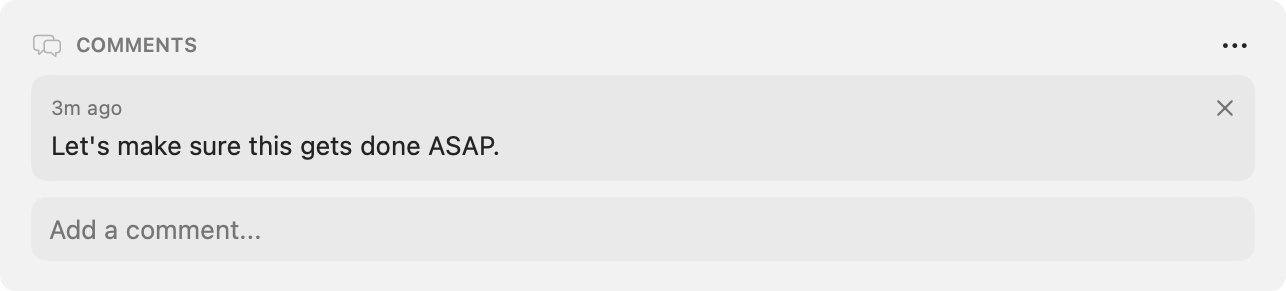
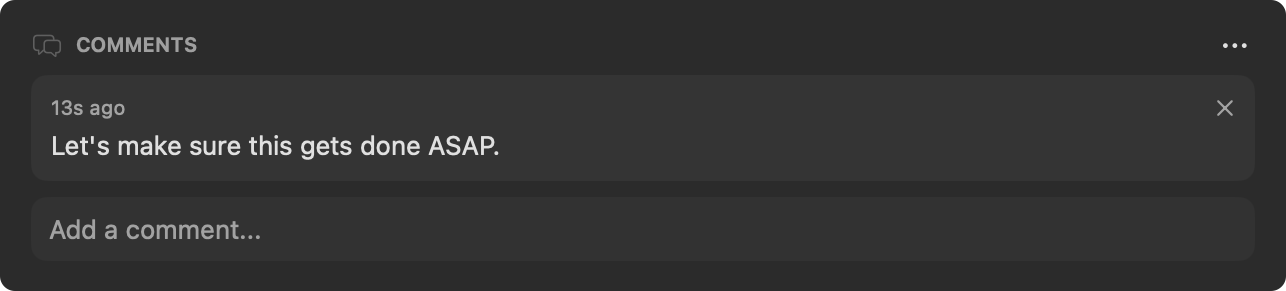
A CRM-style activity log. Each entry is a short comment (up to 2000 characters) with an automatic date, plus the author's name if the notebook is shared. Long comments collapse after 8 lines with a "Show more" link so the activity log stays scannable. Use it for call logs, status updates, customer notes, or anything that benefits from a chronological per-note thread.
In Notes view, the field shows the entries newest-first as small cards (author and relative date in the header, content below), plus a text input and Post button at the bottom. Each card has a small × button that deletes the entry after a confirmation dialog. Entries can't be edited once posted — to make a correction, delete and re-post.
In Table view, the field shows a count pill (e.g., "5") instead of the full content. Open the note to add, view, or delete entries.
In a shared notebook, comments posted by other participants trigger a local notification ("Alice posted a comment") just like new shared notes do. Anyone in the share can delete any comment, regardless of who posted it.
Comments are searchable: the content of every entry is included in Spotlight search (so you can find a note by something said in a comment) and in the in-app search bars in both Notes view and Table view.
Comments fields are not collectable on web forms — they're designed for internal team activity, not public submissions.
Measurement
Duration
A time duration stored as hours, minutes, and seconds. In Notes view, the field shows three separate numeric inputs for hours (h), minutes (m), and seconds (s), along with the formatted total (e.g., "2h 30m").
In Table view, the duration displays in its formatted form. Duration values are stored internally as total seconds, so they can be referenced in Formula fields.


Percent
A numeric value between 0 and 100, displayed with a progress bar. In Notes view, the field shows a text input for the percentage value and a colored progress bar that fills proportionally. The bar turns green when the value reaches 100%.
In Table view, a compact progress bar and the percentage value are shown side by side. Percent values can be referenced in Formula fields.


Scanning
Barcode
A text field for barcode values. You can type a barcode string manually, or on iPhone and iPad, tap the Scan button to open the camera and scan a physical barcode. The app generates a visual Code 128 barcode image below the text field when a value is entered.
Barcode values are plain text strings. The scan button uses the device camera and appears only on iOS devices that support barcode scanning.
QR Code
A text field for QR code values. You can type a value manually, or on iPhone and iPad, tap the Scan button to open the camera and scan a QR code. The app generates a visual QR code image below the text field when a value is entered.
QR code values are plain text strings — they can contain URLs, identifiers, or any other text.
Action
Button
A clickable button that opens a URL you configure. Useful for wiring notes to external systems — open an invoice, trigger a webhook, jump to a CRM contact, or launch any internal tool keyed off the note.
When you add a Button field, you enter:
-
Name — used as the button's visible label, so make it action-oriented (e.g. "View Receipt" or "Send Webhook").
-
URL — the link the button opens. You can use two placeholders that get replaced per note:
{NOTE_ID}— the note's unique ID.{NOTEBOOK_ID}— the notebook's unique ID.
Example:
https://invoices.example.com/r/{NOTE_ID}will open a different page for each note.
The button looks and acts the same on every note in the notebook by default — click it to open the resolved URL. You can also override the URL or disable the button on a single note, both via the long-press / right-click menu in the app and via the REST API.
Override on a single note (in-app) — long-press (iPhone/iPad) or right-click (Mac) the button to open a menu:
- Edit URL for this note… — opens a sheet where you can type a custom URL just for the current note (placeholders work the same way). Leave it blank to use the field default.
- Reset to default URL — shown when a per-note override exists; clears the override.
- Disable on this note / Enable on this note — toggles whether the button is clickable on this note.
Override via the REST API — PUT /v1/notes/{id} with an object value: "MyButton": {"url": "https://...", "enabled": false}. Either key is optional; the keys you omit keep their current state. Send null for the field to clear both back to defaults. Useful for automation hooks like "lock the action button on completed notes" or "swap the destination per customer".
curl -X PUT https://cloud.neatbase.app/api/v1/notes/A1B2C3D4-... \
  -H "Authorization: Bearer YOUR_API_KEY" \
  -H "Content-Type: application/json" \
  -d '{
    "fields": {
      "Send Webhook": { "url": "https://hooks.example.com/abc", "enabled": true }
    }
  }'
Disabled placeholder URL (#) — if you set the URL (either the field default or a per-note override) to literally #, the button is forced disabled. This overrides the enabled flag — the button stays grayed and uncallable even if enabled is true. Two common patterns:
- Set the field's default URL to
#so the button is disabled by default on every note, and provide a real URL per-note (via long-press → Edit URL, or the API). - Set a per-note override to
#to suppress the button on a specific note without changingenabled.
The exact match is just # (with optional whitespace). Things like https://example.com#section still work normally.
Button fields are excluded from web forms (there's nothing to collect). Via the REST API, each note response includes the resolved URL as a string, with the placeholders already substituted — handy for piping notes into automation pipelines.


Layout
Layout fields don't store any data. They're visual elements for organizing the look of your notes.
Divider
A horizontal line that creates a visual separation between fields. Useful for grouping related fields together within a note.
Heading
A bold label for a group of fields. Use a Heading to introduce a section ("Contact Info", "Project Details", "Status") so related fields are clearly grouped. The heading text is larger and bolder than a Description, and the spacing is asymmetric — the heading sits closer to the field directly below it than to the field above, so it visually attaches to the group it labels.
When you add a Heading field, you just type the heading text in a single input — no separate "name" needed.
Description
A read-only text paragraph that displays the same static text on every note. Useful for instructions, reminders, or commentary that should appear alongside specific fields. For grouping fields under a clear label, use a Heading instead.
When you add a Description field, you just type the description in a single textarea — no separate "name" needed.